
AtlasX VPN Setup Guide with Happ
October 12, 2025
This guide helps you connect your AtlasX VPN subscription to the Happ app in just a few minutes, on your phone, tablet, TV or computer. Always start with your phone or tablet: it is your main device, and you will use it to set up all the others.
Before you start
Make sure you have the following three things:
- An active AtlasX VPN subscription. If your subscription has expired, the server list will stay empty.
- Your personal subscription link. It was sent to you after your purchase and opens your customer page (see Step 2).
- A compatible device: Android, iPhone/iPad, Windows, macOS or Amazon Fire TV Stick, with an Internet connection.
Important: your subscription link is personal. Do not share it with anyone, as it gives access to your account.
Step 1: Install Happ
Happ is free. Only download it from your device’s official store or from the official download links below.
| Device | Where to download | Search for |
|---|---|---|
| Android | Google Play Store | “Happ Proxy Utility” |
| iPhone / iPad | App Store | “Happ Proxy Utility” |
| Windows | atlasxvpn.com/app-windows | Download and run the installer |
| macOS | App Store or official Happ website | macOS version |
| Android TV / Android box | Google Play Store on the TV | “Happ” |
| Apple TV | App Store on the Apple TV | “Happ” |
| Amazon Fire TV Stick | Downloader app | See below |
Install Happ on your phone or tablet first, then on your other devices. The first time you open it, the home screen is empty: this is normal, your subscription has not been added yet.
On Amazon Fire TV Stick
On Fire TV Stick, Happ is installed with the Downloader app and the address https://atlasxvpn.com/installapk
- From the home screen, open Find, type “Downloader” and install the Downloader app (orange icon).
- Go to Settings > My Fire TV > Developer Options > Install Unknown Apps and turn on Downloader.
- If “Developer Options” does not appear: go to Settings > My Fire TV > About, then click your device name 7 times. Then go back to step 2.
- Open Downloader and allow access to files if asked.
- In the address field, enter
https://atlasxvpn.com/installapk, then click Go. - When the download is complete, click Install, then Open.
- Back in Downloader, choose Delete to remove the installation file and free up space.
To add your subscription to the Fire TV Stick afterwards, follow Step 3.
Step 2: Add the subscription on your phone or tablet
Your phone (or tablet) is the key device: you add the subscription there first, then use it to set up your other devices.
- Make sure Happ is installed on your phone or tablet (Step 1).
- Open your AtlasX VPN subscription link: it shows your customer page (days left, expiry date, status, connected devices).
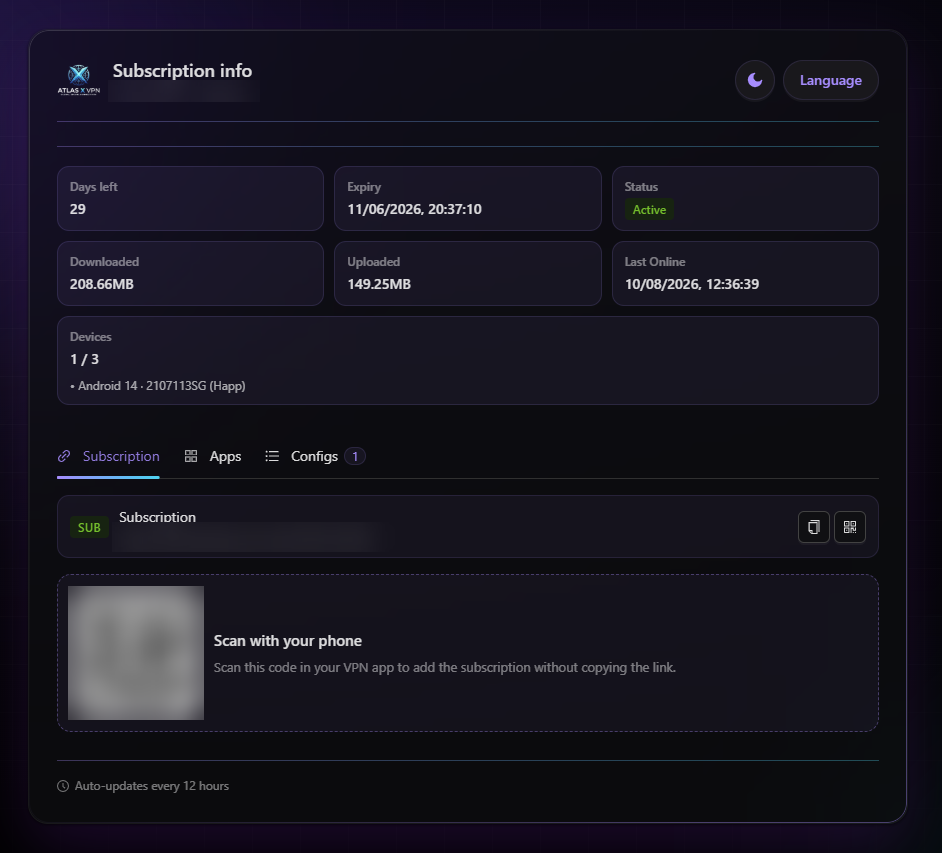
- On your customer page, open the Apps tab.
- Select your system (Android or iOS), then tap Add next to Happ.
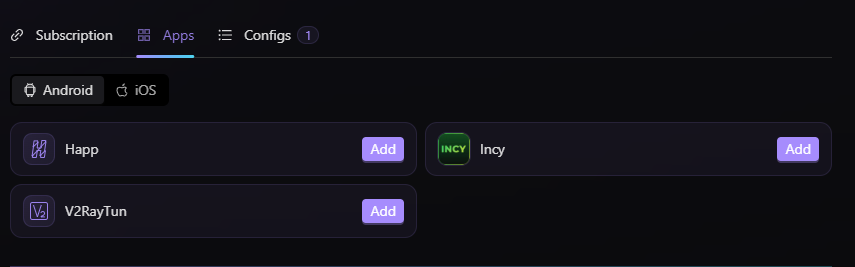
- Happ opens and the “Atlas X VPN” subscription is added automatically.
Alternatively: in the Subscription tab of your customer page, copy the link with the copy icon, then tap Clipboard at the bottom of the Happ screen.
Step 3: Add the subscription on your other devices
On your other devices (Fire TV Stick, Android TV, Android box, Apple TV…), there is no need to type the link: just scan a QR code with Happ on your phone or tablet.
- Install Happ on the device (Step 1) and open it.
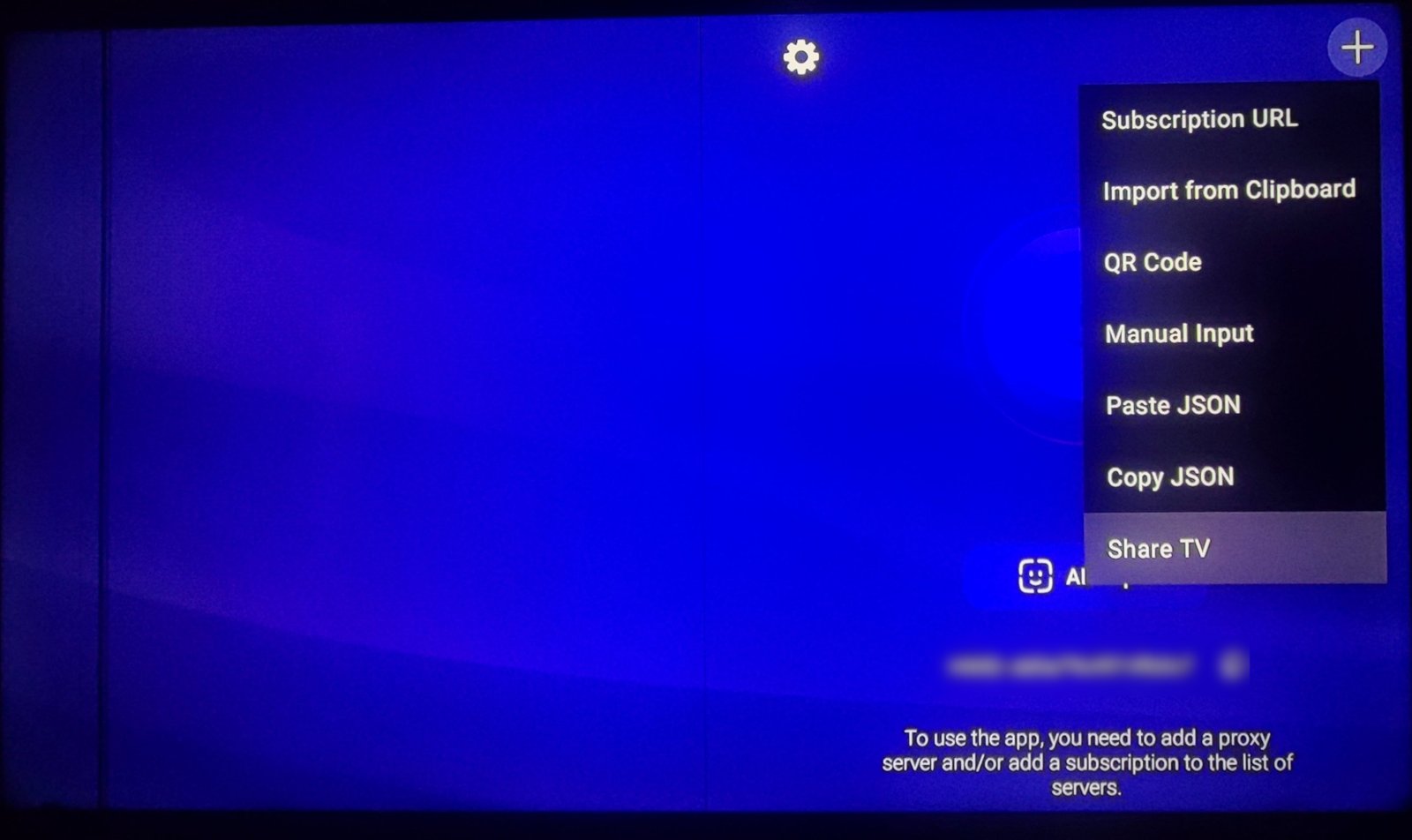
- Press the + in the top right corner, then choose Share TV. A QR code appears on the screen.
- On your phone or tablet, open Happ and tap QR-Code at the bottom of the screen.
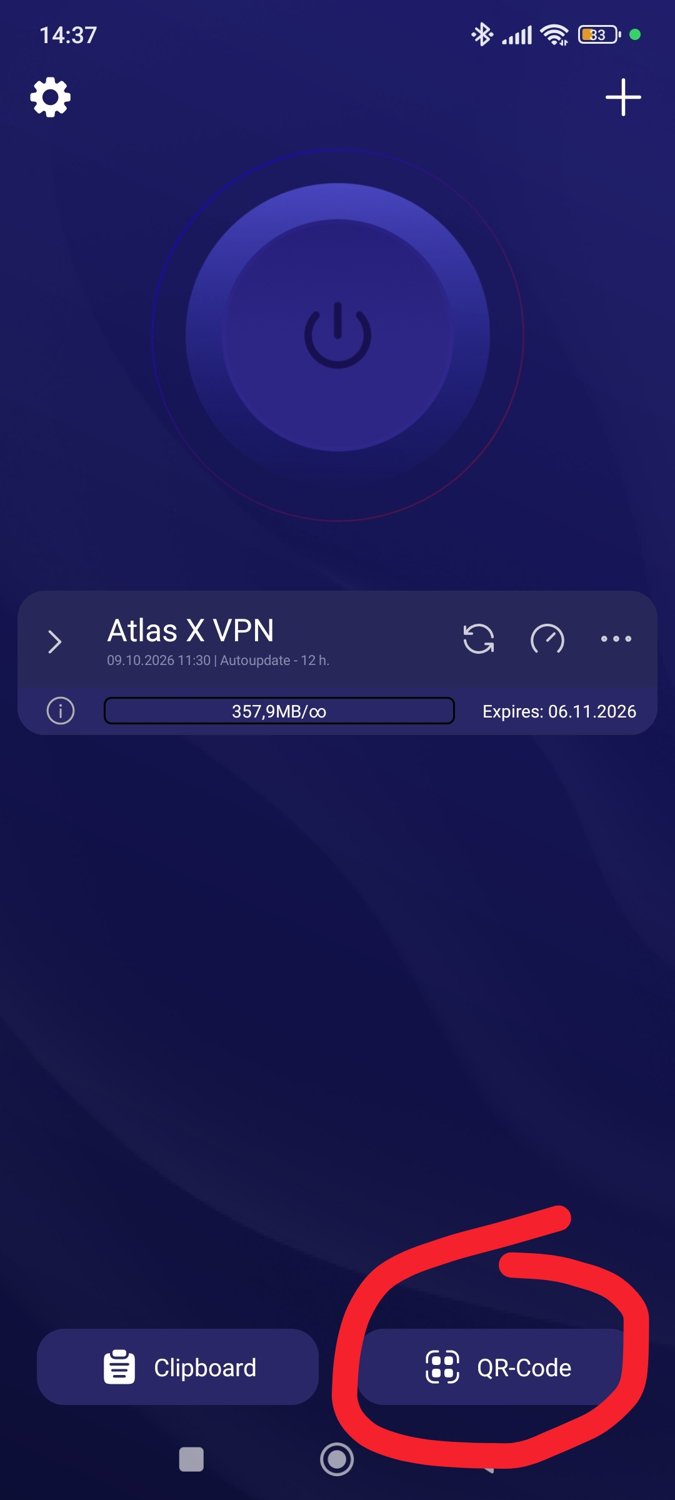
You can also tap the + in the top right corner and choose QR Code.
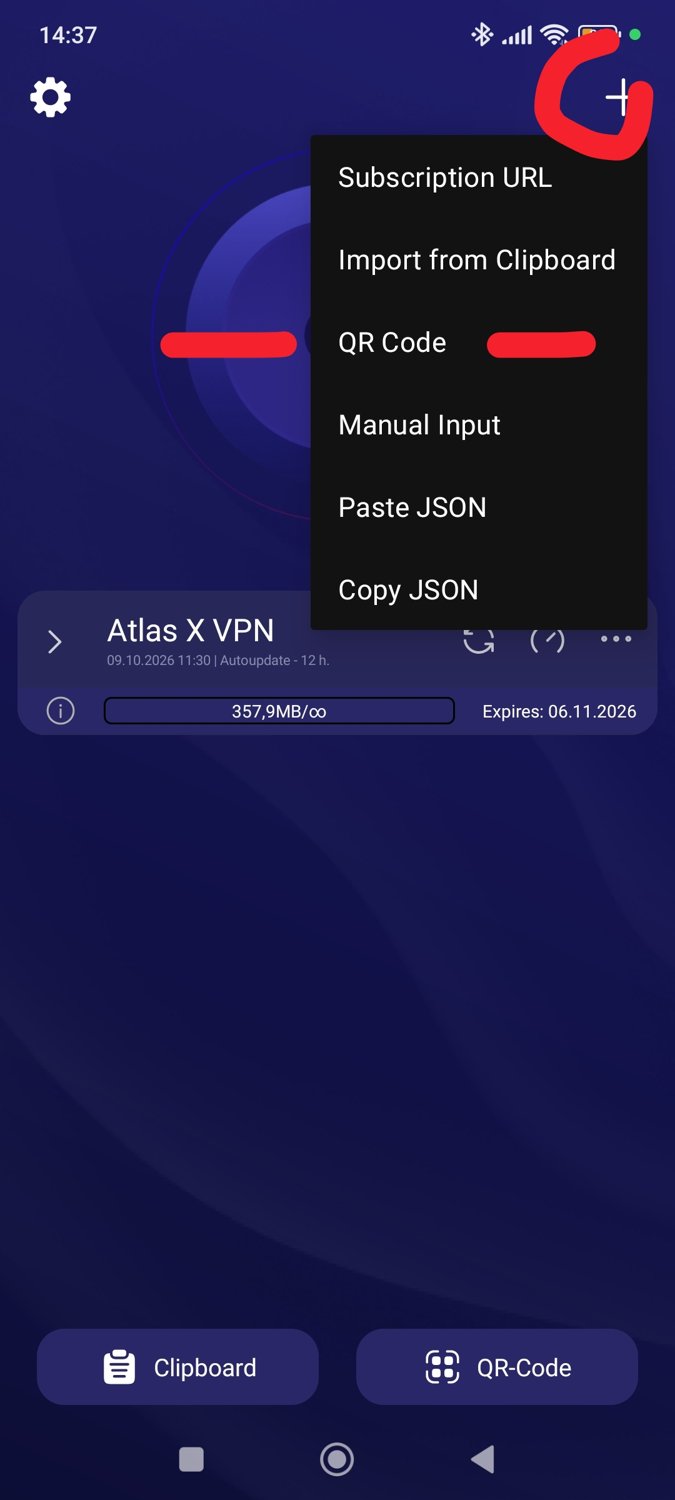
- Scan the QR code shown on the TV: the subscription is added to the device automatically.
Both devices must be connected to the Internet during this process. The number of devices allowed by your subscription is shown in the Devices box on your customer page (for example 1 / 3).
Step 4: Choose a server and connect
- In the AtlasX VPN list, tap a server to select it.
- To find the fastest one, run the latency test (gauge icon next to “Atlas X VPN”): the lower the number in ms, the better.
- Tap the large connect button in the center of the screen.
- The first time you connect, accept the request to add a VPN configuration (Android, iPhone, macOS) or the administrator permission (Windows).
- The button changes color and shows “Connected”: your traffic now goes through AtlasX VPN.
To check, open a website such as whatismyipaddress.com: the country shown should match the server you selected.
Updating your subscription
Update your subscription after each renewal or if a server stops responding: AtlasX VPN may add or replace servers.
- Manual update: in Happ, tap the refresh icon (circular arrows) next to the AtlasX VPN group.
- Automatic update: it is already enabled: Happ updates your subscription every 12 hours, with nothing to do on your side.
In most cases, your subscription link stays the same after a renewal: a simple refresh is enough.
Troubleshooting
Most problems are solved by updating the subscription or switching servers.
| Problem | Solution |
|---|---|
| “Invalid link” when importing | Copy the full link again, with no spaces or line breaks. |
| The server list is empty | Check that your subscription is active, then refresh it. |
| Connected, but no website loads | Switch servers, then disconnect and reconnect. |
| Slow connection | Run the latency test and choose the fastest server. |
| Connection drops often (Android) | Turn off battery optimization for Happ in your settings. |
| Nothing works after an update | Delete the subscription in Happ and add it again (Step 2 or 3). |
| Another VPN is installed | Disconnect it: two VPNs cannot run at the same time. |
Need help?
If the problem persists, contact AtlasX VPN support, stating your device and attaching a screenshot of the error message. Never share your subscription link publicly.
Contact channels:
- Your direct provider, through the contact channels they have given you.
- By email: support@atlasxvpn.com, only if you got your subscription from atlasxvpn.com.
- Telegram: t.me/atlasxvpn